Turn any TV into a living picture frame.
PhotoWall fills the biggest screen in the house with your own photos — artistic collage walls that rearrange themselves, or a calm single-photo slideshow when you'd rather it just sit there quietly. It runs as an app you open, or as the screensaver that takes over when the TV goes idle.
Your TV is black between shows. Fix that.
PhotoWall turns any Android TV or Google TV into a picture frame. Scan a QR code with your phone, pick your albums, done. Free on Google Play.

What PhotoWall does.
Built, shipped and supported in-house — every part of it made by the same person who answers your email.
Collage walls
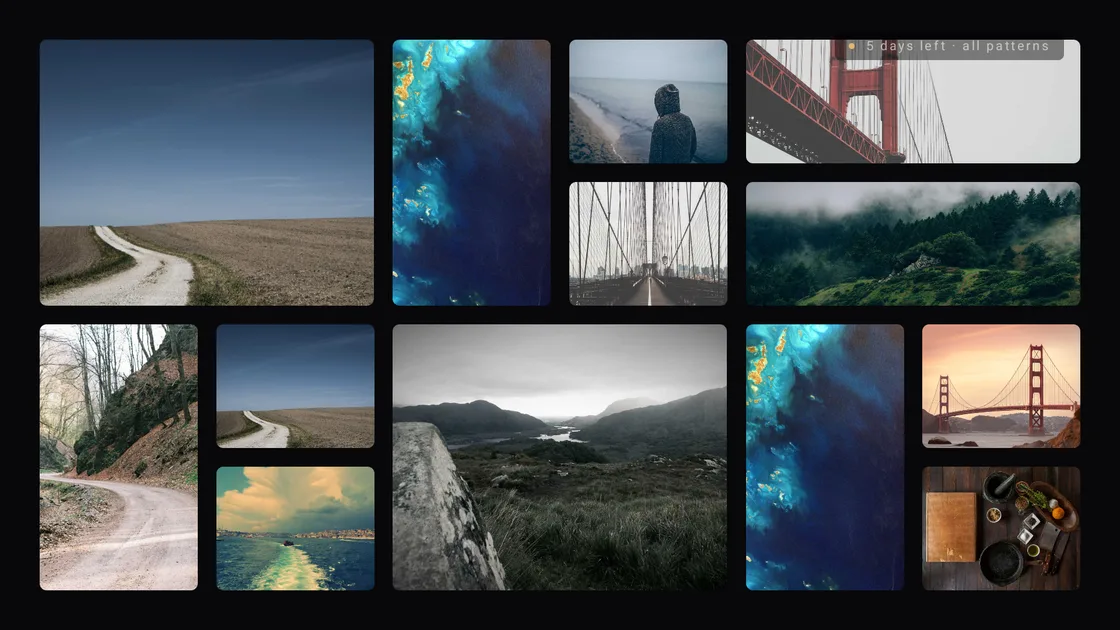
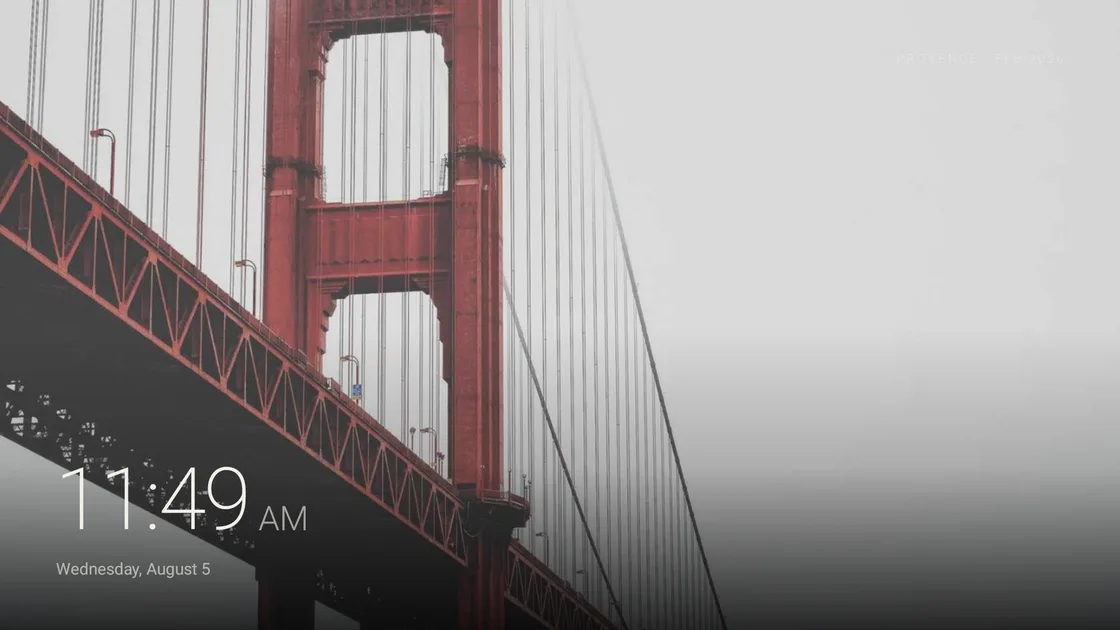
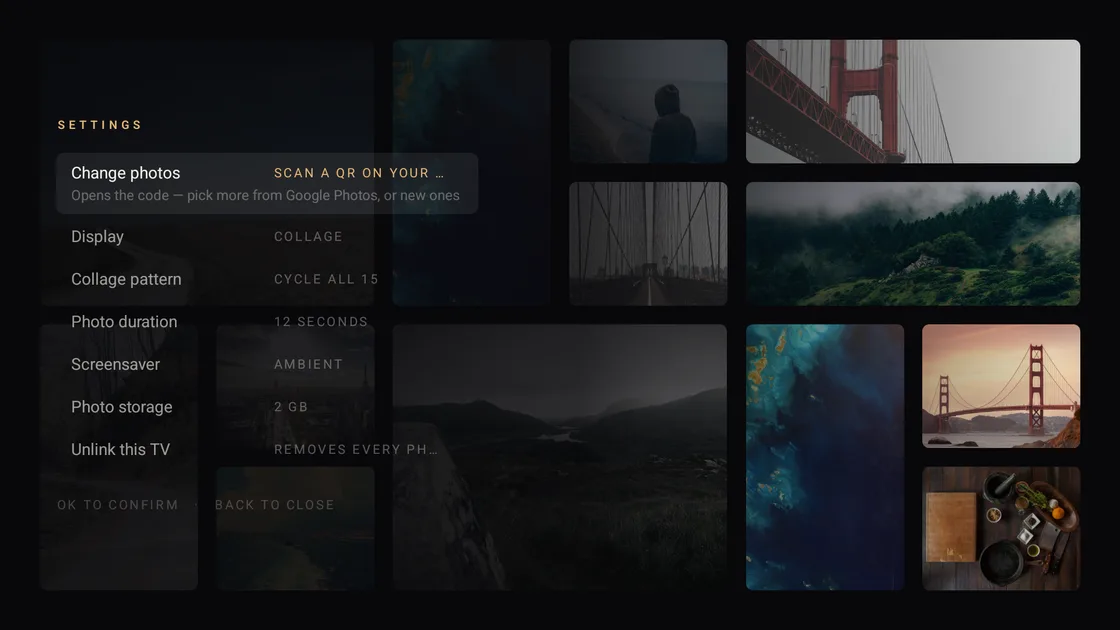
Photos arrange themselves into layered mosaics that shift and rebuild over time, so the wall never looks quite the same twice.
Calm slideshow
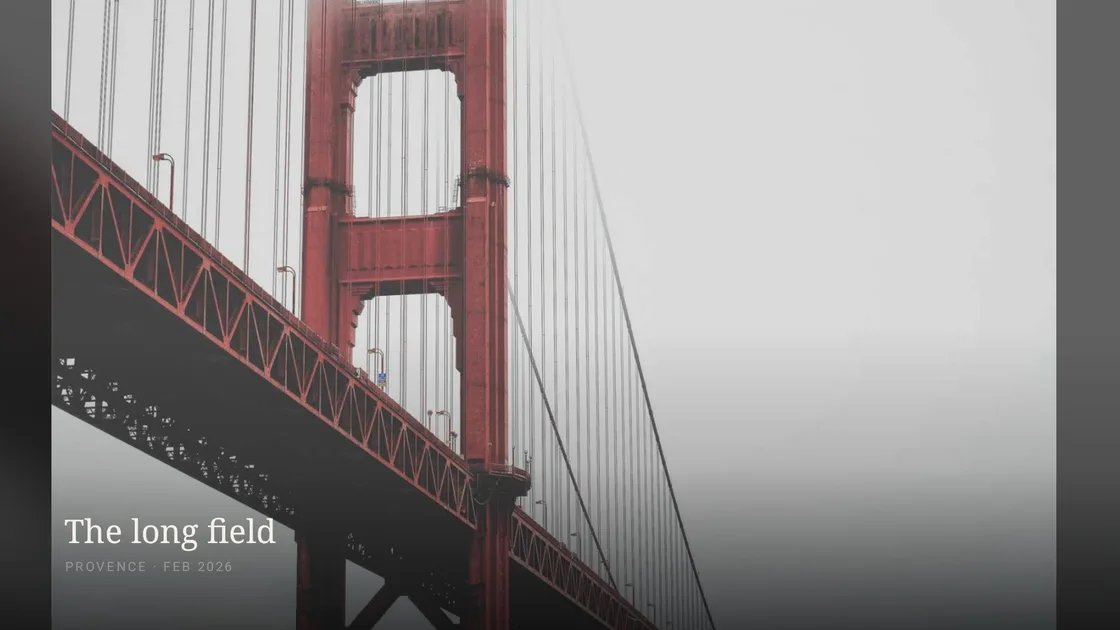
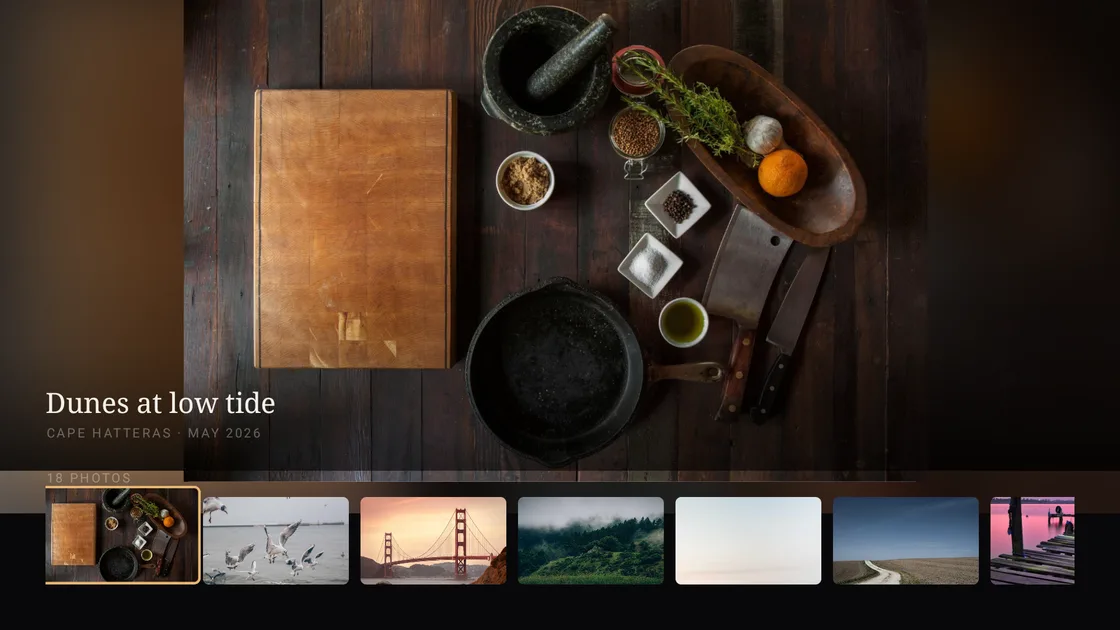
Prefer one photo at a time? The free slideshow mode does exactly that — full screen, unhurried, no clutter.
Screensaver or app
Launch it yourself, or set it as the screensaver so it takes over automatically whenever the TV has been idle.
Pair with a QR code
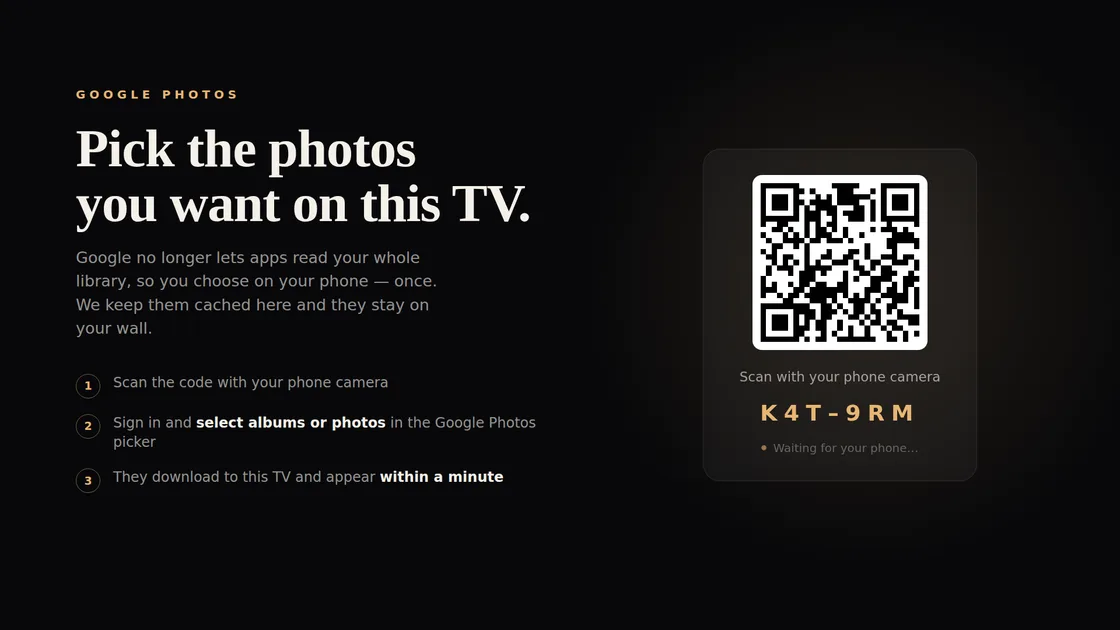
Point your phone at the code on screen and pick the photos you want. No typing an email and password with a TV remote.
Your photos, your sources
Pull from Google Photos, an Apple public shared album, or upload straight from your phone.
No ads, ever
The slideshow is free and stays free, with no advertising. Collage patterns are a single one-time unlock with a week's free trial first — no card needed to try it.
A look inside.
Every layout, running on a real television.

And when you'd rather it wasn't photos.
Press up or down on the remote and the wall becomes something else entirely — drawn on the TV, not streamed, so none of it costs you bandwidth.
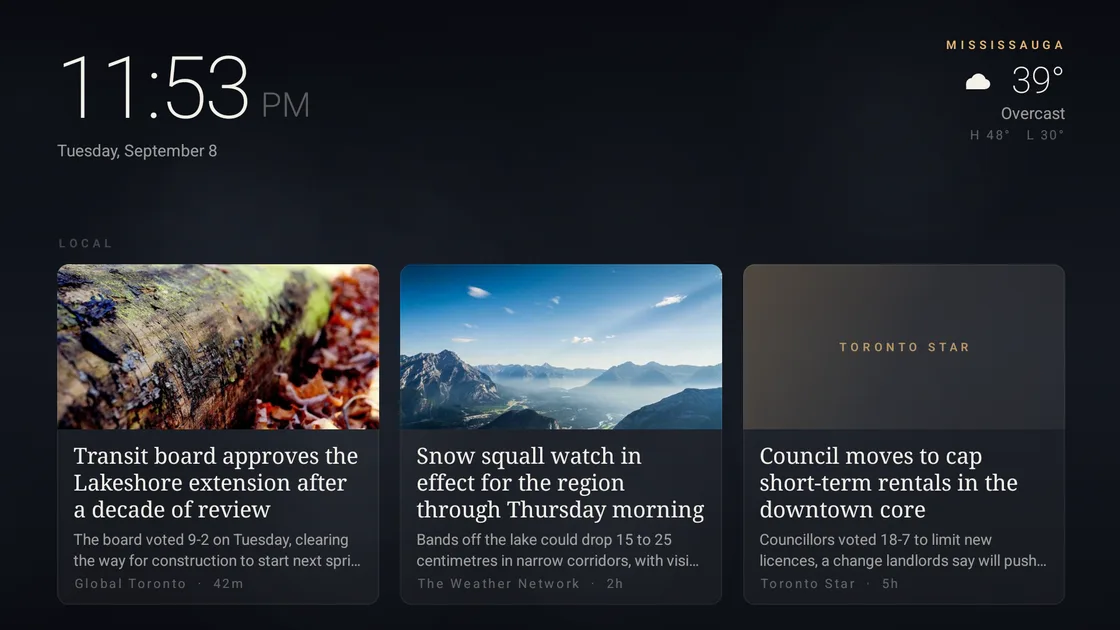
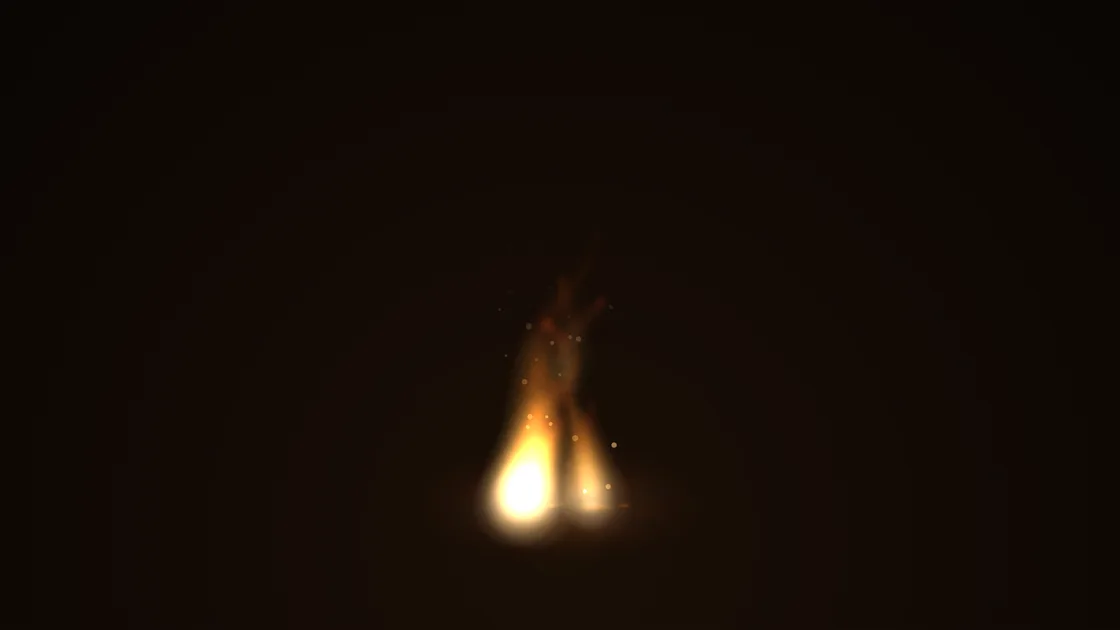

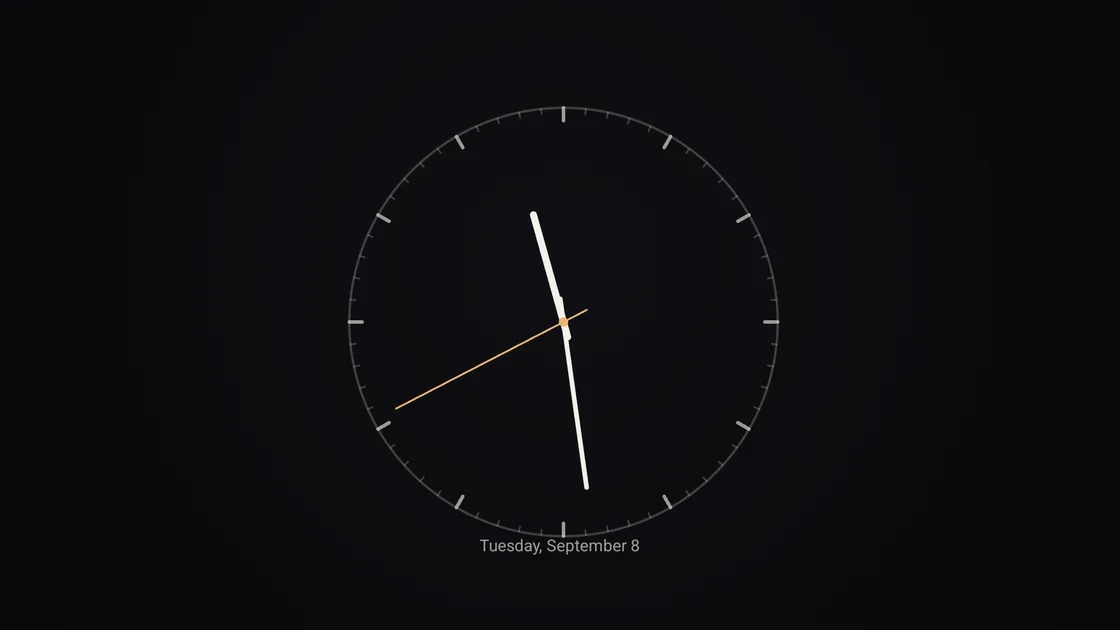
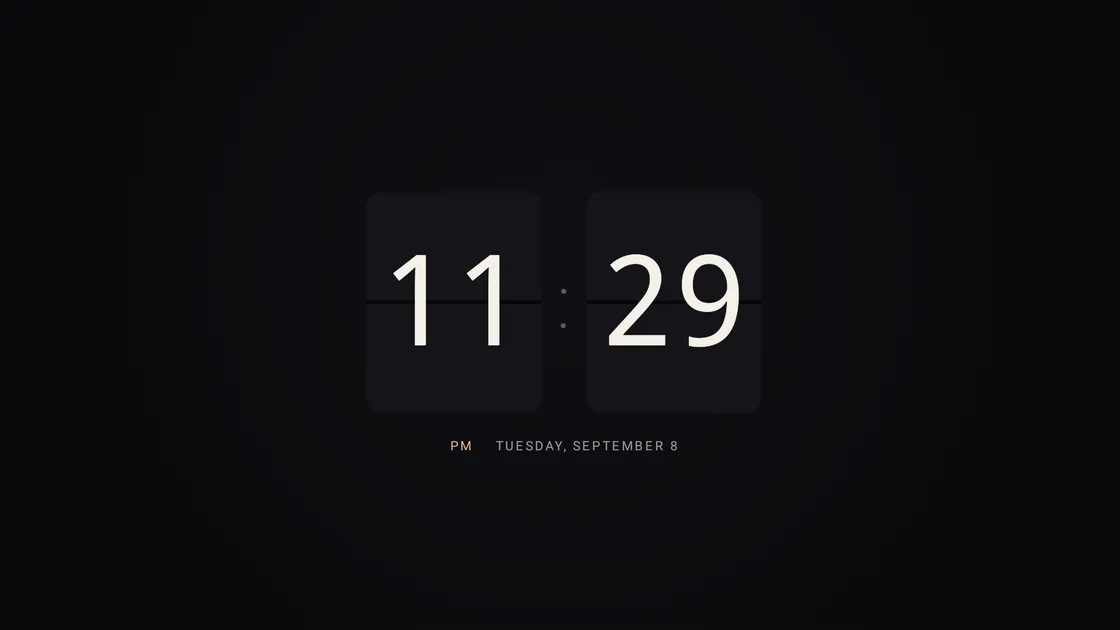
The Briefing scene is the newest: the time, today's weather where the TV actually is, and what's happening locally — with the sky behind it changing to match the forecast. It asks for no location permission; the weather comes from the network the TV is already on.
Made for the biggest screen in the house.
A television spends most of its life switched off and black. This gives it something to do in between.
Questions, answered.
Which TVs does PhotoWall work with?
Any Android TV or Google TV device — that includes most modern TV sets from Sony, TCL, Philips and Hisense, plus streaming boxes and sticks like the Chromecast with Google TV.
Where do the photos come from?
You choose. PhotoWall can pull from Google Photos, from an Apple public shared album, or from photos you upload directly off your phone during pairing.
How do I set it up?
Open PhotoWall on the TV, scan the QR code with your phone, and pick your photos there. The pairing page lives at photowall.nextlayertechnology.net.
Does it cost anything?
The single-photo slideshow is free with no ads. The artistic collage patterns are a one-time unlock — no subscription — and there's a seven-day free trial that doesn't ask for payment details up front.
Is it out yet?
PhotoWall is live on Google Play now, free to download. The single-photo slideshow is free forever; the artistic collage patterns are a one-time unlock.
How do I get photos from my phone onto my TV?
Open PhotoWall on the television and scan the QR code it shows with your phone camera. You pick the photos on your phone, they upload to the TV, and they stay there — no cable, no casting, and nothing that has to keep running on the phone afterwards.
Can I put photos on my TV without casting or a cable?
Yes, and that is the difference. Casting mirrors your phone and stops the moment you walk away or take a call. PhotoWall sends the photos to the television itself, so the wall keeps running with your phone in your pocket or switched off entirely.
Can I use my TV as a digital photo frame?
That is the whole idea. Set PhotoWall as the screensaver and the TV becomes a photo frame whenever nobody is watching anything — then goes back to being a TV the moment someone picks up the remote.
Does it work with Google Photos?
Yes. You choose the photos yourself inside Google’s own picker, so PhotoWall only ever receives the ones you picked rather than access to your whole library. Apple public shared albums and direct uploads from your phone work too.
Free on Google Play today.
More from the studio.
Nine apps, one promise: friendly tools that work flawlessly, respect your privacy and fit your life. See all nine and their Google Play links →